Reports & Excel/CSV Exports
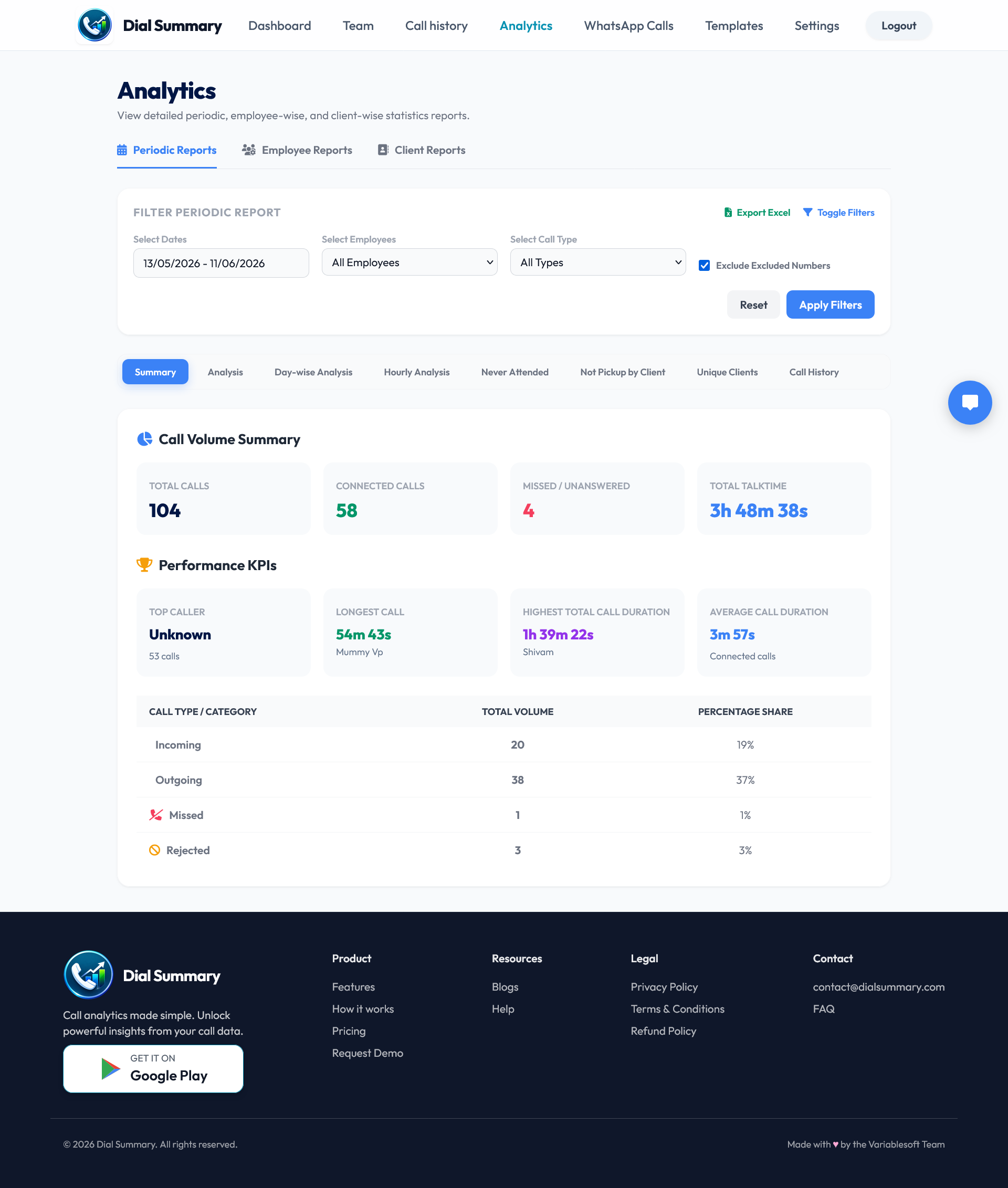
To access this feature, open your CRM Dashboard and click on Reports & Exports. Filter structured calling data by employee, department, and custom date windows, then export audit-ready CSV or Excel files for executive briefings and operational planning.
Setup Instructions
Step 1
Select Reports & Exports from the left navigation bar.
Step 2
Choose report type: Executive Call Summary, Agent Performance Breakdown, Lead Stage Pipeline, or Missed Call Audit.
Step 3
Apply filters by agent name, team department, call outcome (Answered, Busy, Missed), and date range.
Step 4
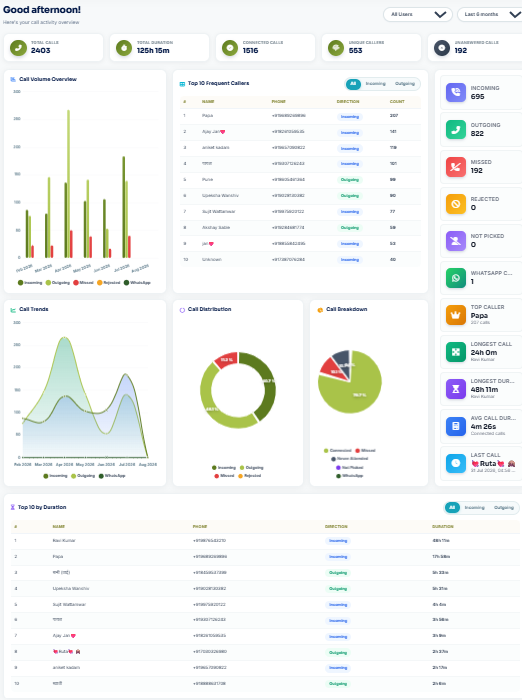
Click Generate Report to inspect real-time preview data tables and trend graphs on screen.
Step 5
Click Export CSV or Export Excel to download a clean, structured spreadsheet ready for offline presentation.
Got Questions?
Frequently Asked Questions
Yes. You can filter calling reports by individual agent, department, call status, and custom dates, then export clean CSV or Excel files with one click.
Reports are available for direct download in CSV and Microsoft Excel (.xlsx) formats with pre-formatted numerical timestamps and headers.
Yes. The exported spreadsheets contain comprehensive, self-contained summaries suitable for sharing directly with leadership or third-party auditors.